Invoices (business)
Send invoices, track what customers owe, and get paid online. Bills you owe are on the Bills page.
Where it is in the app
Sidebar → click a business or rental → Invoices.
How it works
- 1Invoices is an add-on: $10/month on any plan, or $15/month together with Projects (the Bills page stays included). Until it’s added, the Invoices page and the menu show a lock; tap it to see what it does and Add Invoices. Accounts that already used invoices keep it included.
- 2First time? Tap Start setup on the Invoices page: add your logo and business info, then how customers pay you (Zelle, PayPal, Venmo, Cash App, card link). The setup checklist goes away once it’s done; change things later with Invoice settings (top of the page). The same business info is under the entity’s Settings → Company info.
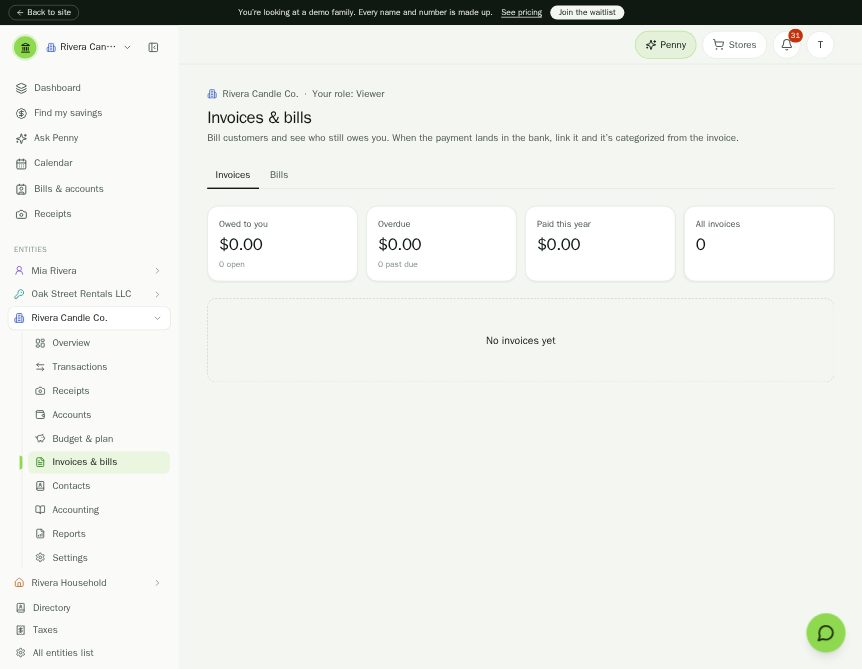
- 3The page lists the invoices you’ve made, with tabs: Unpaid (shown first), Drafts, Paid and All. Each shows who, due date (with how many days until it’s due), status (late ones say how many days overdue) and amount; tap the number to open one. Each row has Edit (unpaid invoices and drafts: change the customer, dates, lines, note, repeat or W-9, then Save changes; the number stays the same; Edit is also on the invoice itself), PDF to download it, and Mark paid: pick the day it was paid (cash, check, or anything the bank feed doesn’t show). Mark unpaid undoes it.
- 4New invoice (button at the top): pick or add the customer, add lines and a due date, then send it. The customer gets a link to view and pay. Saving brings you back to the list. Invoice numbers: the first time, you pick the number invoices start at (in the New invoice form, or Invoice settings → Invoice numbers, which also lets you add a prefix like INV-). It’s set once and can’t be changed; after that each invoice takes the next number on its own, in order, never reused.
- 5To send it yourself, open the invoice and tap Send from my email. On a phone (or Safari on a Mac), Share the PDF to email opens your mail app with the invoice PDF already attached. Or type the Gmail account to send from (if you’re signed in to more than one) and pick Gmail, Outlook, Yahoo or your computer’s email app: a new email opens in a small window, written to the customer with the amount, due date and the link to view and pay, and the PDF downloads at the same moment so you can attach it with the paperclip. With Attach W-9 on, the PDF is one file: the invoice, then your signed W-9 (Download PDF says “with W-9”). On a phone, PDF opens in a viewer on top of the app: tap Share to save it to Files or send it, and Done to come back. Nothing is sent by the app. Download PDF (on the invoice) saves a ready-made PDF file named after the invoice.
- 6Set up repeating invoices for regular customers.
- 7Take payments online (optional): in Invoice settings (the Set up invoices page), find Take payments online and tap Connect Stripe. Stripe asks about your business and the bank account to pay out to (about 5 minutes; only admins can do it). Once Stripe finishes checking, every open invoice’s customer page shows Pay by card and Pay from your bank. The customer pays on Stripe’s secure page, the money goes straight to your Stripe account and on to your bank, and the invoice marks itself Paid and you get an alert. Bank transfers take about 4 business days to clear; the invoice shows that it’s on the way until then. The card shows the total fee per payment (card processing and our platform fee together); there’s no monthly fee and your customer pays only the invoice amount. Turn off switches the buttons off. To refund, use your Stripe account; a full refund reopens the invoice.
- 8Penny finds payments for you: each time you open Invoices and after the daily bank sync, she looks for a deposit of the exact amount on or after the invoice date in that business’s accounts (transfers between your own accounts don’t count). If the deposit names the customer, she attaches it and marks the invoice paid, and the deposit is categorized as the income. If only the amount matches, “Is this the payment?” at the top of Invoices asks first: Yes, mark paid, or No, not this one. You can still pick one yourself under Link the bank deposit.
- 9History (at the bottom of each invoice): when it was created, finalized, emailed (and to whom), viewed by the customer, edited, paid (marked by you, paid online, or matched to a deposit, with Found by Penny and a link to the deposit), marked unpaid or voided.
- 10Bills you owe vendors go on the Bills page (sidebar → Bills), not here. A business that entered vendor bills here before still sees a Bills tab at the top of Invoices for those.
- 11Your own W-9: tap Set up W-9 (or Send W-9) next to New invoice. It fills itself from Company info, including the tax ID (EIN or SSN, in the right boxes), so you just check it, sign once and save. Then send it to any client in one step.
Company info and logo (for invoices)A business’s Directory (contacts)Accounting: the chart of accountsReports
Want this for your family?
Hold my spot, free