Bills
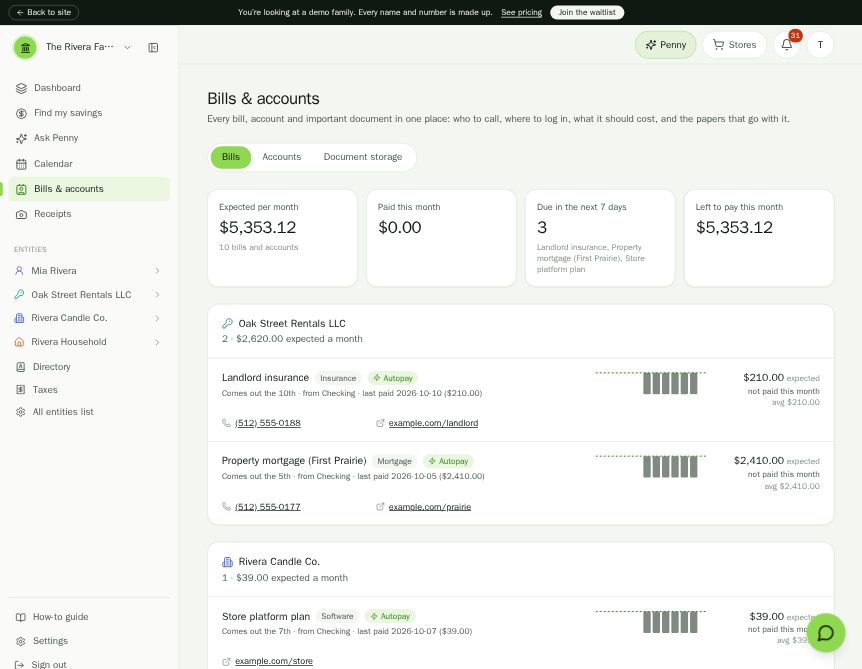
Everything that comes out month after month, bills and subscriptions: who to call, where to log in, what it should cost, when it’s due.
Where it is in the app
Sidebar → Bills (the Bills tab on a phone). Bank accounts and logins are in Settings → Bank accounts; documents are in each entity.
How it works
- 1When the page opens, Penny looks through your charges for everything that comes out again and again that you haven’t saved yet: utilities, phone and internet, trash, insurance, car and loan payments, health care and subscriptions. Two tabs at the top: Your saved bills, and Not saved, where Penny’s finds are listed in two groups, Bills and Subscriptions.
- 2Tap Save to put one on your bills list with everything she found (name, type, amount, how often and the day it comes out), or Save all to save the whole list. Edit & save opens the form first so you can add the phone, website or login. Not a bill hides it. Look again runs her search again.
- 3Add a bill adds one by hand with the amount, how often and the due date (day of the month).
- 4Payment history (under each saved bill) opens the bank charges that matched it, newest first, with the account and amount; amounts well over the expected one are red. See these in Transactions opens them filtered.
- 5No payments showing? In Payment history tap Ask Penny to find a match: she looks for charges spelled a little differently (Coserve vs COSERV) across all your entities. Use this switches the bill to that name; for a match in another entity, Also track in … adds it as another place the bill is paid from.
- 6One bill, paid from more than one entity: in Payment history tap Add another place, pick the entity and type the name on that statement (COSERV ELECTRIC). The bill shows Paid from both, its chart and this-month total add them together, and Payment history tags each payment with its entity and shows the split. Each charge stays in its own entity’s books. Tap × on a place to stop tracking it.
- 7In Payment history each amount is red when it’s over the expected amount, green when it’s on target and white when it’s under. Monthly bills with a due date show On time (green check) or Late (red), allowing two days for the bank to post. Bills not on autopay show a reminder with Ask Penny how, which opens Penny with the steps to set it up.
- 8Each bill can hold the website, phone number, account number reminder and notes.
- 9Due bills show on the Calendar and send alerts before they’re due.
- 10Bank, card and loan accounts, and logins with nothing to pay (Amazon, a school portal), are in Settings → Bank accounts.
Want this for your family?
Hold my spot, free